


Singing the blues because your digital perimeter is wide open can ruin your day. Streaming your favorite tunes or controlling smart speakers relies on invisible, airborne data waves. Just like the earliest radio transmissions from the history of music, these wireless frequencies radiate far beyond your physical walls.
Anyone sitting in a car down the street can easily intercept an unencrypted signal. Learning how to secure home wifi network setups protects your private personal data from malicious digital snoopers.
Key Takeaways
- Default settings leave networks highly vulnerable to immediate cyber threats.
- Activating WPA3 encryption acts like a modern digital vault.
- Segregating smart gadgets onto guest networks isolates device vulnerabilities.
- Disabling remote administration shuts down unauthorized external system access.
- Regular firmware maintenance patches critical, newly discovered system bugs.
Learning to Secure Home Wifi Network Infrastructures Is Essential
Imagine leaving your front door unlocked while blasting a legendary rock album for the entire neighborhood to hear. An open router invites digital hitchhikers to steal your bandwidth, spy on your banking details, or download illegal content under your name.
Taking ten minutes to learn how to secure home wifi network systems locks out these online trolls. It is the easiest way to keep your private digital footprint completely private.
Step 1: Change Default Credentials
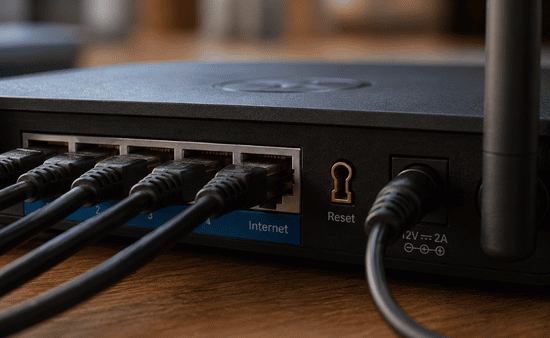
Modifying your factory access details is the very first line of defense for a clean digital setup.
Erasing the Factory Footprint
Masking Your Identity
Change your Wi-Fi Network Name to something unique that does not contain your name, address, or router brand. Announcing your hardware model gives targeted attackers a blueprint of your vulnerabilities. A neutral, fun pseudonym keeps your physical household completely anonymous to outside scanners.
Step 2: Enable Strong Encryption
Scrambling your wireless data transmissions prevents unauthorized external interceptors from reading your personal information.
Activating the Modern Protocol
Ensure your router uses WPA3 Personal, which stands as the most secure protocol available today. This advanced standard provides robust protection against brute-force guessing attacks executed by modern hacker software. Upgrading to this baseline ensures that your everyday web traffic remains completely unreadable to snoopers.
Accommodating Older Tech Safely
If you have older smart devices that do not support WPA3, use WPA2 Personal with AES. This fallback method still offers excellent protection while maintaining backward compatibility for legacy hardware. Avoid outdated WPA or WEP settings because modern computers can crack them in a matter of seconds.
Step 3: Set Up Guest and IoT Networks
Dividing your internal digital traffic keeps sensitive local storage drives safe from compromised smart appliances.
Building a Safe Visitor Zone
Create a dedicated Guest network for visitors so they cannot access your personal files or local machines. Friends might accidentally bring malware onto your property via their infected smartphones. Giving them an isolated sandbox to browse the web keeps your main workstation completely untouched.
Quarantining Smart Home Appliances
Connect all your Internet of Things gadgets like smart TVs, lightbulbs, and thermostats to this separate guest network. Most consumer smart devices rarely receive critical software maintenance updates from their developers. Confining these gadgets to an independent zone prevents a hacked lightbulb from exposing your primary computer.
Step 4: Turn Off Unnecessary Features
Eliminating superfluous background protocols shuts down the hidden backdoors that automated threats target.
Deactivating Convenience Hurdles
Disable WPS because this push-button connection feature contains fundamental structural flaws. Anyone with basic hacking software can exploit the simplified pin system to bypass your complex network password. Turning it off forces all new connections to use your main, secure passphrase.
Restricting Administrative Rights
Turn off Remote Management to prevent outsiders from configuring your router over the internet from external locations. System modifications should only ever be allowed from a device physically plugged into the hardware. This simple toggle switch removes your control panel from the public web.
Closing Automatic Port Pathways
Disable UPnP unless you specifically need it for specialized real-time software systems. While Universal Plug and Play allows applications to automatically open firewall ports, it can allow malware to bypass your security. Manually managing your ports keeps you in complete control of incoming traffic.
Step 5: Update Your Firmware
Consistently keeping your internal system software updated patches critical infrastructure vulnerabilities.
Automating System Maintenance
Just like a computer, your router’s operating system needs regular updates to patch newly discovered security flaws. Cybercriminals constantly find new ways to exploit older code architectures. Check your router settings to ensure automatic firmware updates are turned on for hands-free safety.
Checking for Manual Overrides
Some older hardware brands require users to manually check the manufacturer’s website for updates periodically. If your device lacks an automatic download toggle, set a calendar reminder to check for updates twice a year. Running the latest developer patch ensures you are protected against emerging global threats.
Frequently Asked Questions
1. What is the best way to secure your home WiFi?
The single best approach involves changing your default admin credentials, activating WPA3 encryption, and disabling remote management features inside your dashboard. This creates a highly resilient baseline defense against common cyber threats.
2. How to protect your home WiFi from being hacked?
You must isolate all your smart home appliances on a separate guest network and routinely update your router firmware. These actions prevent malware from spreading laterally across your personal devices.
3. What security mode is best for a secure home WiFi?
WPA3 Personal is the absolute best security mode because it utilizes advanced cryptographic handshakes to block automated password-cracking tools. It provides the strongest defense for modern household networks.
4. Are home WiFi networks secure?
Standard home networks are rarely secure straight out of the box because factory configurations use generic passwords publically indexed online. Users must actively configure their settings to establish authentic privacy.
Tuning Out the Intruders: Your Safe Wireless Future
Taking control of your router infrastructure ensures absolute digital peace of mind. Implementing these foundational changes builds a resilient defensive shield around your valuable personal files and streaming media.
Learning how to secure home wifi network setups transforms vulnerable signals into private, fortified zones. Stay safe, keep your systems updated, and enjoy a completely worry-free connected lifestyle.