



Ever tried setting up a home server or configuring your router while streaming your favorite vinyl rip, only to find yourself blocked because you lack a specific identifier? Learning how to find your mac address is the golden key to managing your network devices, securing your Wi-Fi, and keeping everything humming smoothly alongside your digital music library.
This guide walks you through the exact steps for every device without the usual technical jargon.
Key Takeaways
- Unique 12-character hardware fingerprints identify every network card.
- Windows users find it via the Command Prompt app.
- Apple devices list it under System Settings or Wi-Fi.
- Mobile phones randomize it by default to protect privacy.
- Private address tracking must be disabled for router filtering.
Tracking Down Your Hardware Coordinates
Locating your physical identifier requires navigating the settings panel of your specific operating system.
Uncovering the ID on Windows Devices
Microsoft handles network hardware identifiers under a specific label in its deep system configuration tools. To start, tap your Windows key and type cmd into the search bar to locate the native Command Prompt console application.
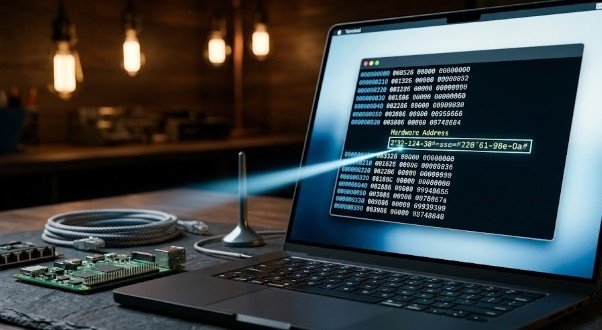
Once the dark terminal window opens, type ipconfig /all exactly as written and strike the enter key on your keyboard. Scroll past the basic IP addresses until you locate your active connection, whether it is an Ethernet wire or a wireless adapter interface. Look closely for a sequence labeled Physical Address, which displays your twelve-digit hardware identifier separated by clean hyphens.
Locating the Footprint on Apple Computers
Apple changed its traditional system navigation layout in recent years, making older online guides slightly outdated. Click the dark Apple icon located in the upper-left corner of your desktop screen to pull down the primary system context menu.
Select System Settings from the menu dropdown list to open the updated preferences dashboard. Click the Wi-Fi option in the left sidebar, scroll down to the bottom of the right panel, and click the Advanced button. Select the Hardware tab from the secondary window to view your unique identity code displayed clearly at the very top line.
Retrieving the Code on Linux Terminals
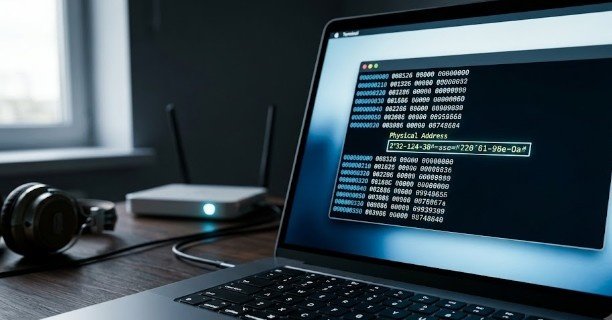
Linux distributions use specialized shell commands to print out system-level hardware details instantly. Open your preferred terminal emulator window by pressing the global shortcut control plus alt plus T simultaneously.
Type the command ip link show into the prompt string and hit enter to execute the low-level query. Scan the resulting output block for your active network interface card name, which is typically labeled wlan0 or eth0. Locate the term link/ether and read the six pairs of hexadecimal characters listed right after that specific phrase.
Knowing How to Find Your MAC Address Saves the Day
Think of your network as an exclusive VIP lounge where your router is the picky bouncer at the door. If your device is not on the guest list, it is not getting in to stream music or download games.
Learning how to find your mac address is the ultimate cheat code to bypass connection headaches, lock down your home security, and keep your smart home devices playing in perfect harmony.
Managing Mobile Network Identifiers
Modern smartphones use advanced privacy tracking protections that change how network interfaces show up on local routers.
Finding the Signature on iOS Devices
Apple treats the hardware identification key as a core detail tucked deep inside the mobile operating system. Open your primary Settings application icon from the home screen layout or the App Library stack.
Tap General and select the About section located at the very top of the next sub-menu stack. Scroll down past the storage capacities and serial numbers until you spot the line titled Wi-Fi Address. This unique string is your mobile hardware key, which looks exactly like standard desktop network identifiers.
Revealing the Key on Android Screens
Android devices place their networking hardware details inside the status dashboard, though layout names differ slightly between manufacturers. Open your main system Settings grid by pulling down the notification shade and tapping the gear icon.
Scroll to the bottom of the settings menu page and tap the section titled About Phone. Select Status Information or Hardware Details depending on whether you use a Pixel or a Samsung ecosystem device. Look for the row marked Wi-Fi MAC Address to read your twelve-digit hex code sequence.
Smart Device MAC Footprints
Smart entertainment gear requires individual network identification steps because these devices lack standard keyboard entry methods.
Checking Popular Gaming Consoles
Gaming hardware requires explicit network identification codes to pass through strict college campus Wi-Fi security gates. For a Nintendo Switch, navigate to System Settings from the main dashboard, select Internet, and read the System MAC Address.
For a PlayStation 5, click the gear icon, open the System submenu, select Console Information, and copy the address strings. Xbox users can open Settings, select General, navigate into Network Settings, and tap Advanced Settings to see their active hardware keys.
Locating Streaming Media Sticks
Streaming players hide their hardware fingerprints inside their minimalist display settings panels. Turn on your Roku player, navigate down to the Settings menu tab, select System, and tap About.
For an Amazon Fire TV stick, open Settings, click the My Fire TV tile, and choose About followed by Network. Apple TV users can open Settings, click General, and select About to find the matching Wi-Fi Address listing.
Hardware Identity Hacks
Using your unique network identifier unlocks helpful customization options across your local routing equipment.
Setting Up Router Filtering Access
Securing a local router involves binding specific hardware keys to your internal network access permissions. Log into your home gateway portal by typing your gateway IP address into a standard web browser window.
Locate the Advanced Security tab or the Access Control sub-menu inside your specific router administration dashboard. Paste your collected device codes into the authorized whitelist database to prevent unknown devices from accessing your local band.
Static IP Address Reservations
Assigning permanent internal addresses prevents smart home technology tools from losing connection when your router reboots unexpectedly. Access your router DHCP reservation matrix table located under local area network settings.
Match your streaming speaker or local media server hardware key to a specific internal IP address block. Save the configuration script to ensure that specific item always receives the exact same digital address pointer.
Frequently Asked Questions
1. How to find your MAC address on iPhone?
To locate this identifier on your iOS device, open the integrated Settings app, select General, tap About, and scroll down to the line labeled Wi-Fi Address to view your code.
2. How do I find out what my MAC address is?
You can easily find this information by checking the network configuration settings on your computer or phone, or by typing the ipconfig command inside the terminal application on Windows.
3. Is the Wi-Fi address the same as the MAC address?
Yes, they are identical identifiers because device manufacturers often use the consumer term Wi-Fi address instead of the technical media access control name to make menus less confusing for everyday users.
4. How do I find out my MAC address on my phone?
Open your device settings panel, choose the general system or about phone category, and select the status information page to find your specific wireless network hardware identification characters.
Jamming with Contentment
Figuring out how to find your mac address gives you ultimate authority over your digital kingdom, ensuring your connection never skips a beat while you manage devices. These digital habits improve productivity. Whether you are locking down your smart home security or reserving a permanent slot for a media server, these simple steps keep you connected. Keep this guide handy for your next hardware upgrade.